Your first page
Open the editor, write a multiple-choice question, mark the right answer, see what your learner will see.
You’ll create a simple multiple-choice question, choose the correct answer, and preview what learners will see.
Open the editor
Open Scaffold from the place where you add content to your course.
If your institution has not installed Scaffold yet, you can follow this guide in the hosted playground.
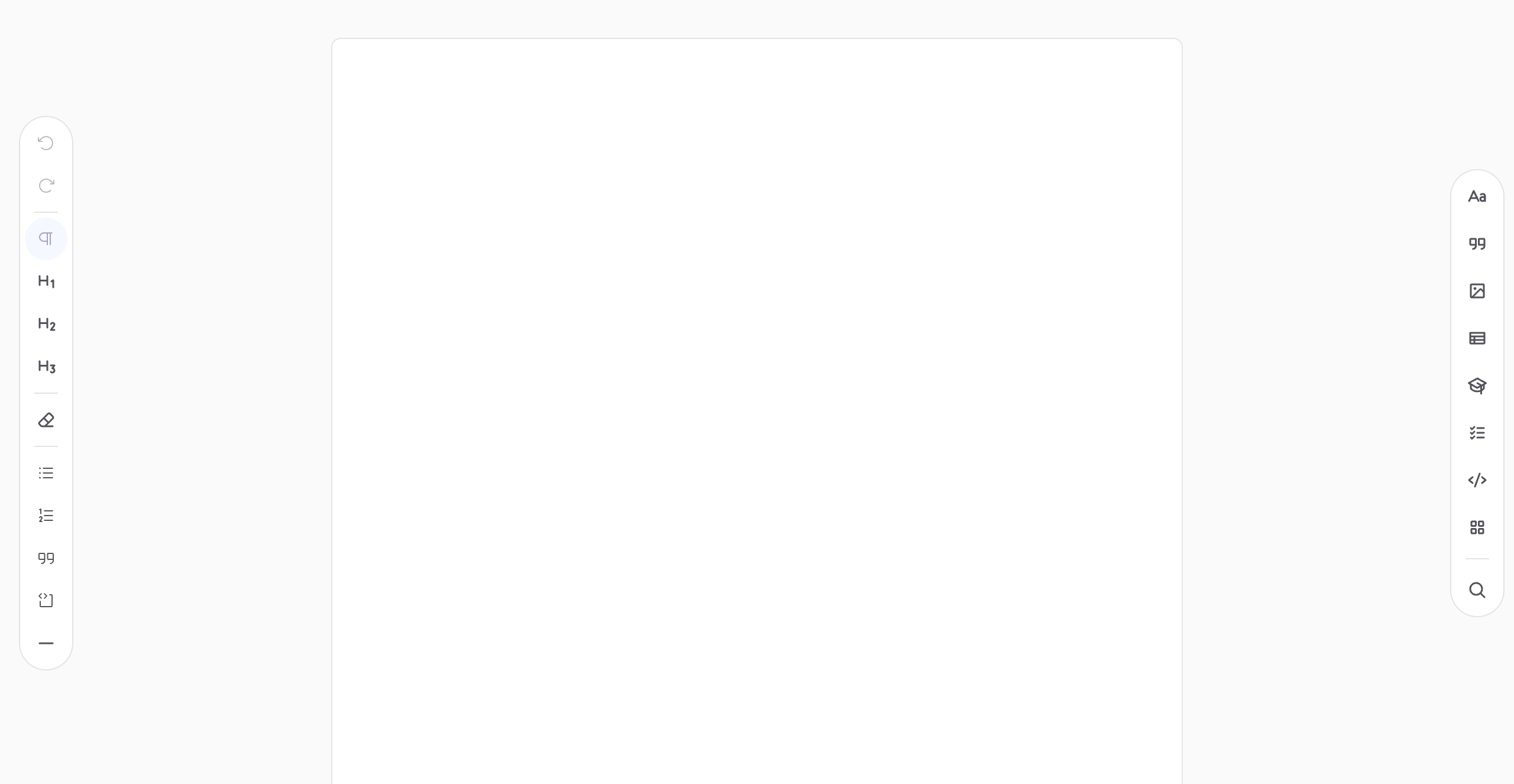
When Scaffold asks what you want to create, choose Page. The editor opens a blank scrolling page ready for your content.
Add a multiple-choice question
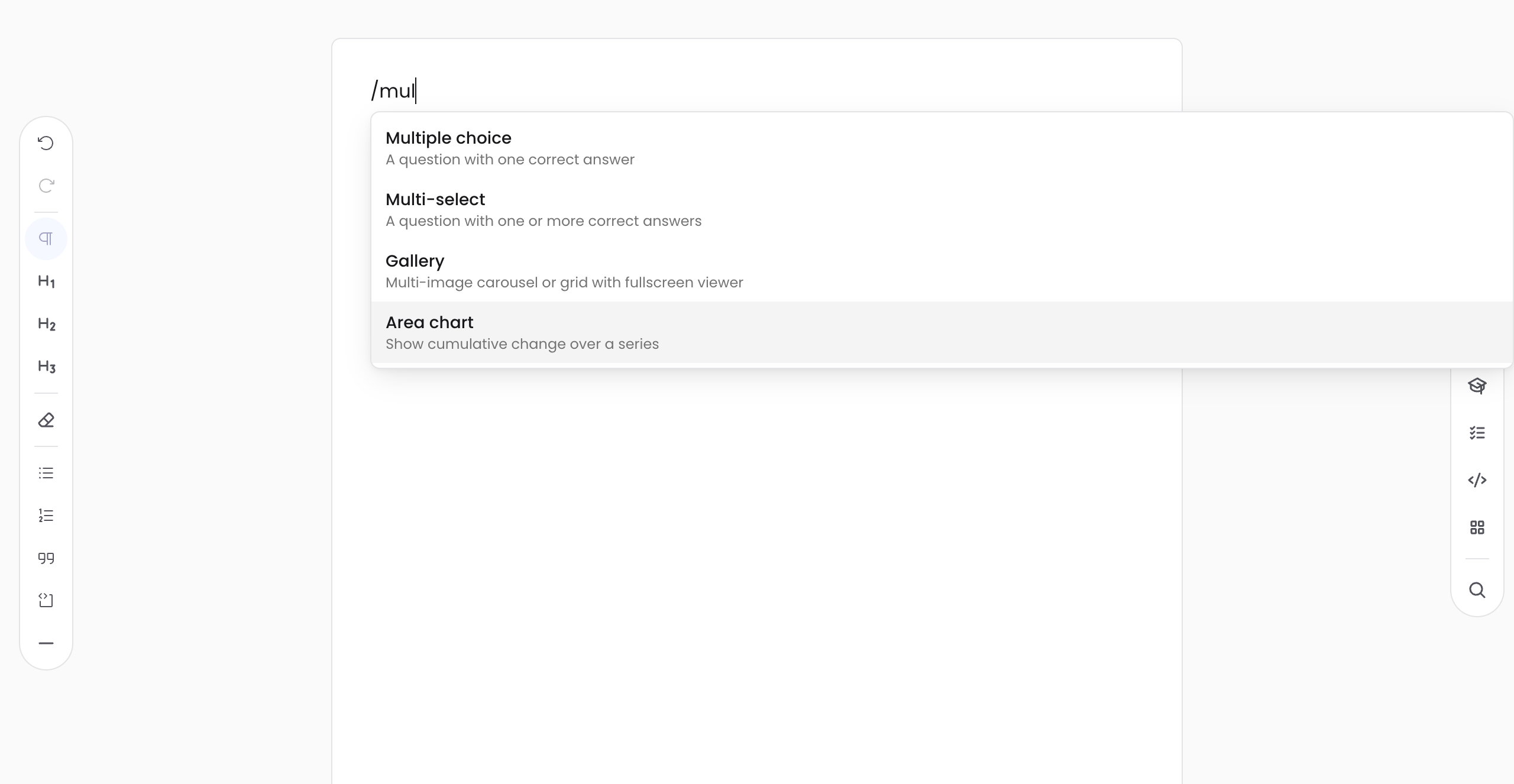
Click in the empty page and type /. The block menu opens. Choose
Multiple choice, or type “multiple” to find it and press Enter.
A question with two answer choices is added to the page.
Write the question
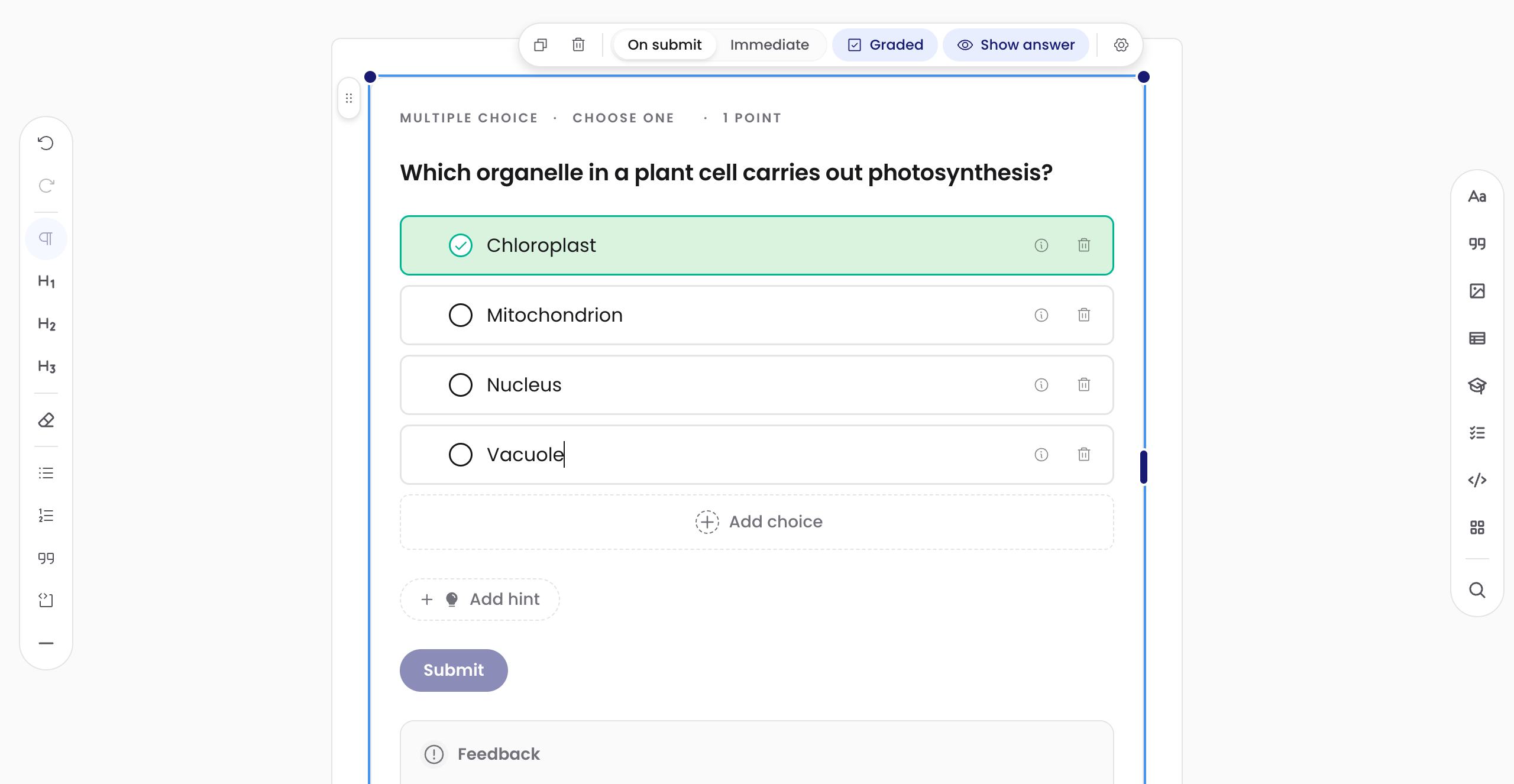
Click Ask your question and enter your question.
Click Enter your choice beside each answer and enter the choices learners can select. Use Add choice if you need another answer.
Mark the right answer
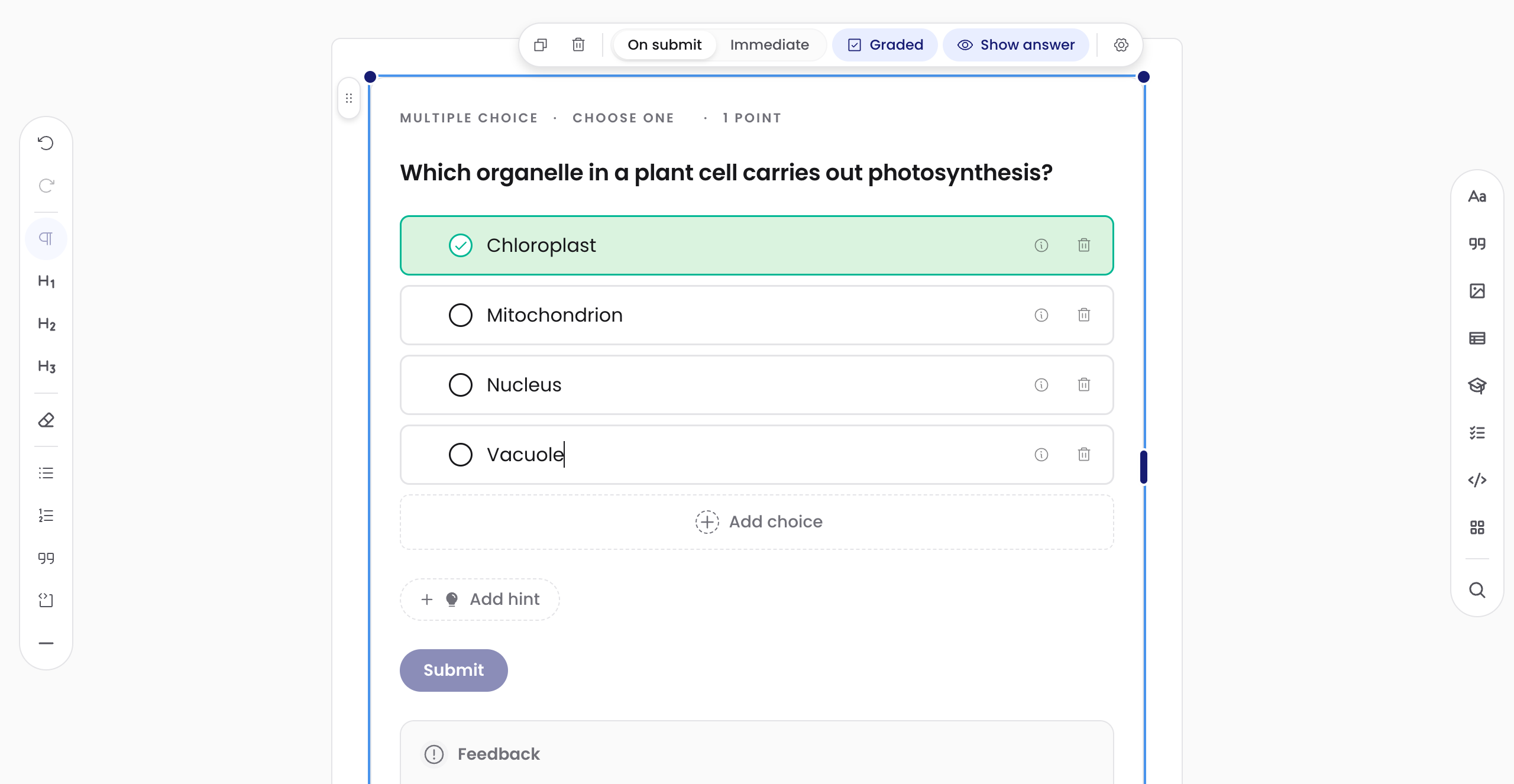
Scaffold marks the first choice as correct when the question is added.
To choose a different answer, click the answer marker beside that choice. A multiple-choice question can have only one correct answer, so the correctness mark moves to the choice you select.
See what your learner sees
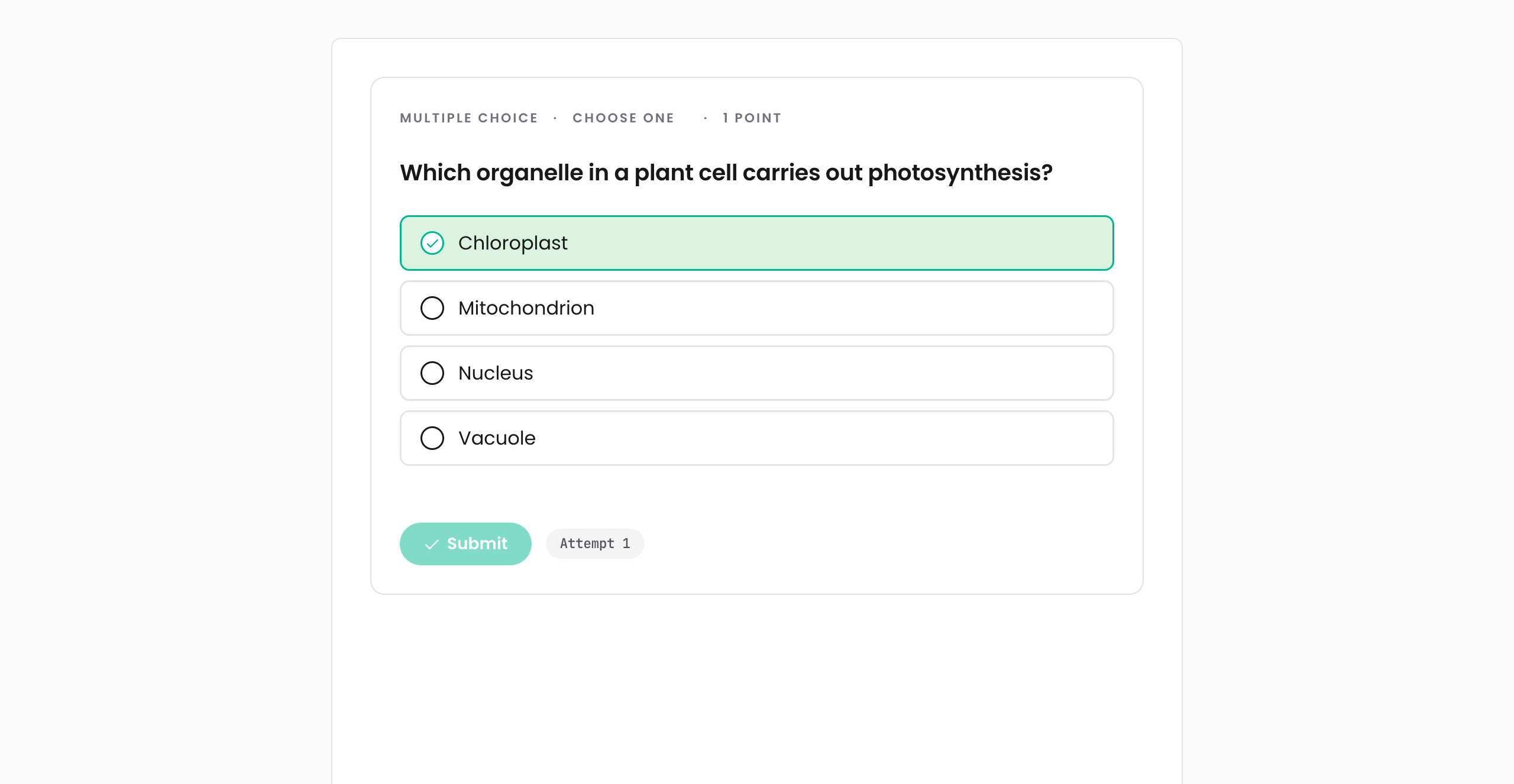
Select Preview at the top of the editor. The editing controls disappear and the page is shown as learners will see it.
Choose an answer and select Submit. Scaffold shows whether the answer was correct. If another attempt is available, select Try again to reset the question.
Select Edit to return to authoring.
What’s next
You now know the basic authoring loop: add content, edit it on the page, choose its settings, and preview the learner experience.
From here:
- Adding blocks shows the different ways to add content.
- What your learners see explains the learner experience in more detail.
- Where Scaffold runs explains how authored content reaches your learning platform.